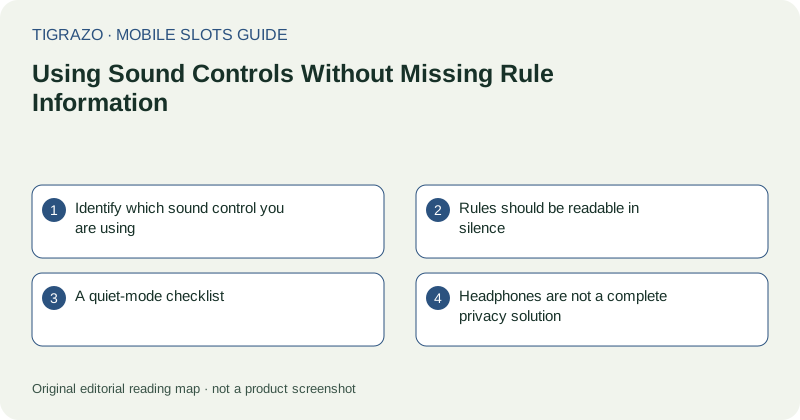
Identify which sound control you are using
A game may have its own mute setting, while the phone has separate media-volume controls and possibly other audio modes. These controls do not always affect the same sounds. Read the available labels rather than assuming a device's silent switch mutes all browser audio.
If the game separates music from effects, identify both settings. Muting a soundtrack may leave interface tones audible. Conversely, a master mute may remove every game sound while leaving unrelated phone alerts unchanged.
Rules should be readable in silence
Open the information panel and check that feature conditions are described in text or clear symbols. An audio announcement may add atmosphere, but it should not be your only basis for understanding a rule. If something important is unclear, seek the written explanation.
The same principle applies to results. A celebratory sound does not establish a net gain, and silence does not establish that nothing happened. Read the settled amount and, where needed, recorded round details instead of classifying outcomes by their soundtrack.
A quiet-mode checklist
Perform audio adjustments only while the game is idle. Keep the phone secure, since side-button presses can shift your grip and bring a finger into contact with the screen.
- Locate the labelled game sound setting.
- Check whether it controls music, effects or both.
- Read an information panel with audio muted.
- Confirm that status messages are visible.
- Keep device volume suitable for the surrounding space.
There is no need to initiate a paid round to verify sound settings. The available labels and existing information panels should guide the adjustment.
Headphones are not a complete privacy solution
Audio routing can change when wireless headphones disconnect or a cable is removed. A browser may then use the phone speaker. Keep media volume at a level appropriate for that possibility rather than relying solely on the current output device.
Also remember that headphones do not hide the screen. In shared spaces, account information and visible activity remain separate privacy concerns. Avoid opening private records where another person can easily read them.
When sound and screen disagree
If an audio cue suggests a transition but the display remains frozen, stop input and note the visible status. Do not repeatedly press controls to obtain a confirming sound. An audio delay or missing effect cannot establish the final state of a round.
Use recorded history and support when the outcome is uncertain. Adjusting volume, reconnecting headphones or waiting for a familiar tune is not a verification method. Sound settings support comfort; they do not change the rules or supply information about the next outcome.